Creator guide
Everything you need to build your album on Feegus, step by step: creating it, the images, the packs, every part of the editor, getting paid and the plans.
Getting started
From the idea to a published album: what you need, how to create it and how people join and play.
What you need
- A Feegus account. The same one you play with.
- A theme and its images. One image per feegu and a landscape cover. Sizes are in Images.
- A plan. It sets how many feegus, sections and missions fit and how long the album stays open. See Plans.
Everything happens in the browser, on a computer or a phone: nothing to download.
Creating the album, step by step
Tap Create my album (at the top of this page) or, if you already created one, Creators › Create album in the app.
- Plan. Choose the album's size. Later you can upgrade by paying only the difference.
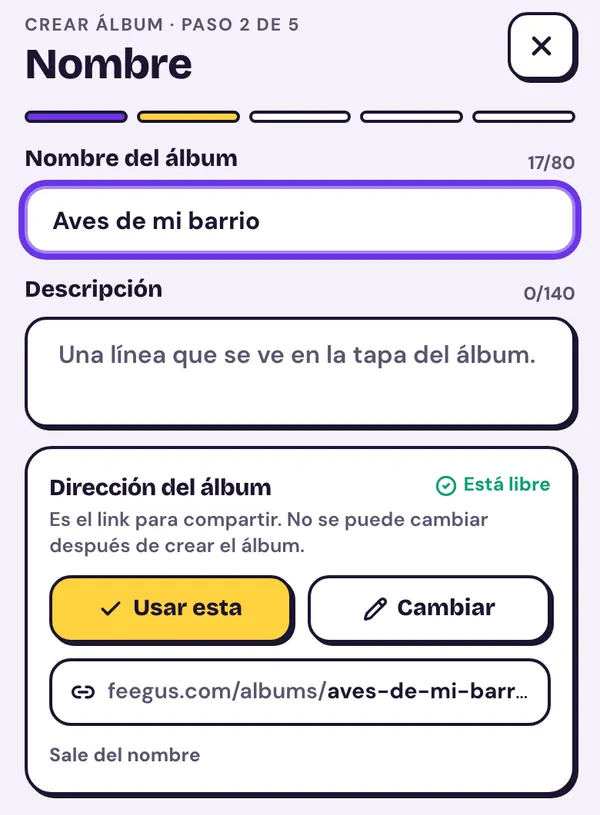
- Name and address. The name (up to 80 characters) and a short description (up to 140). We suggest an address based on the name: keep it or change it. It's the album's link and it can't be changed later.
- Cover. The landscape cover (16:9, at least 800 × 450). You can skip it for now and upload it from the editor.
- Dates. When it opens and when it closes. The plan sets the maximum length; if you don't pick a closing date, you get that maximum.
- Declaration. You confirm the images are yours or you have permission to use them, that they don't infringe anyone's rights or are illegal or offensive, and that you're responsible for the content.
- Create or pay. With a creation credit, the album is created right away. Otherwise you pay for the plan with MercadoPago and the album is created once the payment goes through.
When you finish, you land in the editor with the album as a draft: nobody sees it until you publish it.
Publishing
In the editor, Publish shows what's missing. The button turns on once everything is there:
- The cover.
- At least one section.
- At least one feegu with an image.
- The declaration, accepted.
- If you were already approved to get paid, a price for the premium pack.
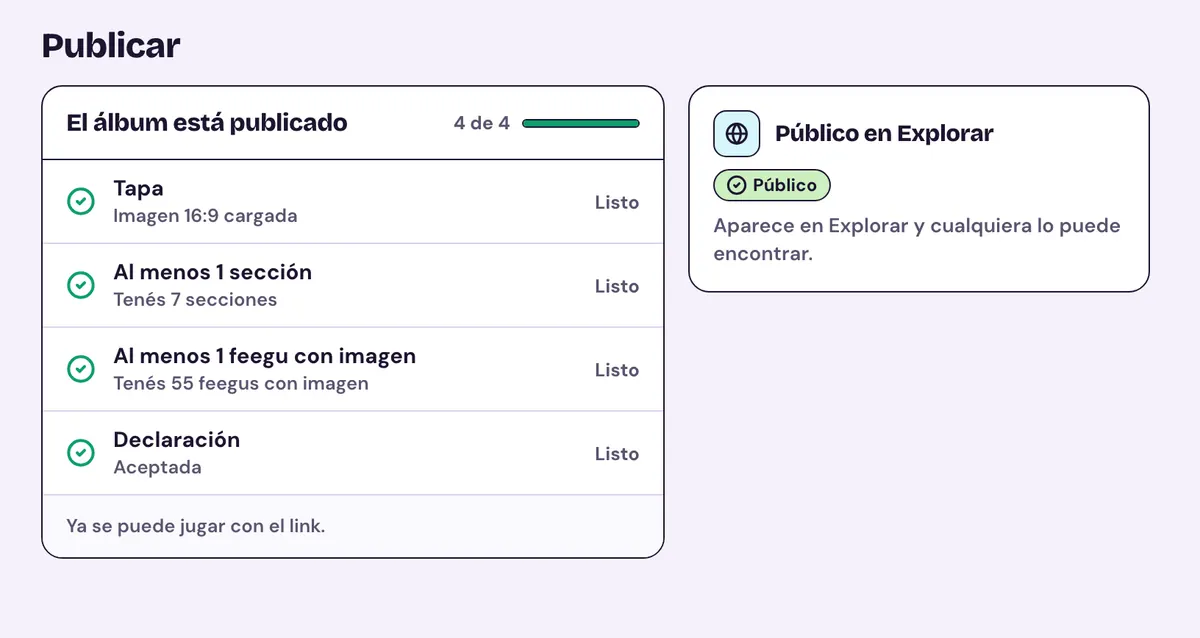
When you publish, the album goes from draft to active and can be played while it's open: between the opening and the closing date.
Publishing doesn't put it in Explore: the album stays private until you ask for it to be public (see below).
Private, public or with a password
- Private (every album starts this way). It doesn't show in Explore. Whoever gets your invitation can join: the Invite friends link on the album cover, or the album code, entered in Albums › Join with a code.
- Public. It shows in Explore and anyone can join. Ask for it in Publish › Public in Explore: you need a verified identity, to accept a few declarations about the content, and the Feegus team's approval.
- With a password. In Details you can require a password to join, even for people with the link or the code. An album with a password doesn't show in Explore.
How people join and play
Playing is free. Whoever joins the album:
- Opens a free daily pack: they can open another one 22 hours after the previous one.
- Pastes their feegus and collects duplicates to trade with friends or burn for a random one.
- Completes missions and redeems prize packs.
- Redeems the codes you give away and, if you sell packs, buys them in Packs › Kiosk.
- Competes in the album's ranking and, by filling it, wins the prizes you set up.
A good start: an easy mission for the first days and, if your plan has codes, a welcome code with a couple of packs to share along with the link.
Images
How many images your album needs, at what size and in which format.
The essentials
- No need to shrink them yourself. Every image is compressed and optimized automatically when you upload it, whatever the file size.
- What matters is the aspect ratio (the shape): portrait 3:4 for feegus and packs, landscape 16:9 for the album cover, square 1:1 for frames. There's a ±5% tolerance.
- If an image is below the minimum size or has a different shape, you'll know as soon as you upload it.
Image types
Common feegu
RequiredThe base image of every feegu, and the only one you can't skip. Any feegu can come out common, rare or epic: that's down to the luck of the pack.
- Aspect ratio
- 3:4 (portrait)
- Minimum
- 400 × 533 px
- Maximum
- 2000 × 2667 px
- Format
- PNG · JPG · WebP
Feegu, rare version
OptionalA different image for when the feegu comes out rare, in case you want it to stand out. Leave it empty and the rare version uses the common image.
- Aspect ratio
- 3:4 (portrait)
- Minimum
- 400 × 533 px
- Maximum
- 2000 × 2667 px
- Format
- PNG · JPG · WebP
Feegu, epic version
OptionalSame as the rare one, but for when it comes out epic. Leave it empty and it uses the common image.
- Aspect ratio
- 3:4 (portrait)
- Minimum
- 400 × 533 px
- Maximum
- 2000 × 2667 px
- Format
- PNG · JPG · WebP
Album cover
RequiredThe landscape banner that identifies your album and stays on the profile of everyone who completes it. It's a single image, so keep the important part in the middle.
- Aspect ratio
- 16:9 (landscape)
- Minimum
- 800 × 450 px
- Maximum
- 2400 × 1350 px
- Format
- PNG · JPG · WebP
Pack cover
RecommendedThere are up to 4 pack types (daily, missions, premium and custom), and each one can have its own design. If you don't upload a cover, one is generated automatically.
- Aspect ratio
- 3:4 (portrait)
- Minimum
- 600 × 800 px
- Maximum
- 1500 × 2000 px
- Format
- PNG · JPG · WebP
Profile frame
OptionalA cosmetic earned by filling the album, one per level (up to 3). The image is square, but avatars are round: design the frame as a circle and upload it with a transparent background.
- Aspect ratio
- 1:1 (square)
- Minimum
- 400 × 400 px
- Maximum
- ≈ 1000 × 1000 px
- Format
- SVG (best) · PNG · WebP
Reward PDF
Each reward level can also include a downloadable PDF (up to 3, one per level). The idea is a printable album: whoever completes the level gets it ready to print at home, and it stays saved in their My downloads forever.
PDF format, up to 15 MB. It's the only file that isn't compressed automatically, so it has to fit that size.
How many images per plan?
Each plan allows a different number of feegus (and extras), so the images you'll need depend on the plan:
| Feature | Inicial | Intermedio | Pro |
|---|---|---|---|
| Feegus | up to 50100 with rares150 with epics | up to 150300 with rares450 with epics | up to 300600 with rares900 with epics |
| Sections | 5 | 10 | 20 |
| Missions | 3 | 5 | 10 |
| Pack types | 3 | 3 | 4 |
| Reward profile frames | No | No | Yes |
| Reward PDF | Yes | Yes | Yes |
| ImagesImages to create | 51 → 157 | 151 → 457 | 301 → 911 |
Pack types: every plan includes 3 (daily, missions and premium). The 4th is the custom pack: a different pack you can also sell.
Images to create: the minimum is one common image per feegu plus the album cover. The maximum adds the 3 versions of every feegu (common, rare and epic), the pack covers and, when the plan allows it, the PDF and frame for each of the 3 rewards. Most albums land somewhere in between: rarities and rewards are optional.
Tips
- Feegus: use portrait images, like a real album sticker. If your photo is landscape, crop it to 3:4 before uploading it.
- Rare and epic versions: you don't have to upload them. The pack decides which rarity each feegu comes out with; a different artwork just makes the rare or epic version easy to tell apart from the common one.
- Profile frames: avatars are round, so think of the frame as a ring. Upload it with a transparent background (PNG or, better, SVG: it's light and stays sharp at any size). If the center isn't transparent it covers the photo; if it hides the profile or breaks the Terms, Feegus may remove it.
- Album cover: landscape (16:9), like a banner.
Packs and rarities
How feegus reach your players: the pack types, the luck of each rarity and the codes.
The four pack types
Daily
Free, one a day for each person: they can open another one 22 hours after the previous one. Not for sale.
Premium
Bought with MercadoPago in Packs › Kiosk. To set its price, you first need to be approved to get paid.
Missions
The missions' prize: whoever completes one redeems the packs you set, from 1 to 5. Not for sale.
Custom
An extra pack with its own name, size and odds, to give away with codes or sell separately. Only on plans that include it.
The daily, premium and missions packs are ready from the moment you create the album; you create the custom one in the editor.
Rarities and odds
Each feegu can come out common, rare or epic. Each pack type has its size (1 to 20 feegus) and its odds, which must add up to 100%.
This is how a pack is filled when it's opened:
- For each slot in the pack, the rarity is drawn with those odds.
- The feegu is picked at random among all the album's feegus and doesn't repeat within the same pack.
- Across packs they do repeat: duplicates are for trading and burning.
If a feegu has no rare or epic image of its own, it shows the common one (see Images).
How to choose them: make rarity feel special. Give the daily pack lots of commons and the missions and premium packs better chances of rare and epic, so completing a mission or buying is worth it. Keep in mind: with few epics, filling the album in epics is for a few people.
An example
| Pack | Common | Rare | Epic |
|---|---|---|---|
| Daily | 90% | 9% | 1% |
| Missions | 70% | 25% | 5% |
| Premium | 60% | 30% | 10% |
Just an idea: each album picks its own. When you create the album, every pack starts at 95% common, 4% rare and 1% epic.
Price and discount
- Only the premium and custom packs are sold. The daily and missions packs are always free.
- Prices are in Argentine pesos and you set them once you're approved to get paid (see Making money). A pack without a price doesn't show in the Kiosk.
- You can set a discount from 0 to 90%: the Kiosk shows the original price and the discount.
- Under the price, the editor shows how much the buyer pays, how much you keep and how much is the Feegus fee.
- Up to 50 packs can be bought per purchase, for yourself or as a gift for a friend already in the album.
Codes to give packs away
A code gives premium or custom packs to whoever redeems it. Use it for giveaways, to reward your community or for a partnership with a brand.
- Packs per redemption: 1 to 50.
- Uses: a fixed number or unlimited. Each person can redeem it only once.
- Expiry date: optional.
- In a batch: create many single-use codes at once (a prefix plus 6 digits, for example MUNDO482913), downloaded as a .csv file to hand out.
- How many codes you can have depends on the plan.
A code doesn't add anyone to the album: people join first (with your link or the album code) and then redeem it in Packs.
The album editor
Everything you set up in the editor, part by part, with ideas for each one. The screenshots show a sample album (the app in Spanish).
How it's laid out
In the app, go to Creators and tap Edit on your album.
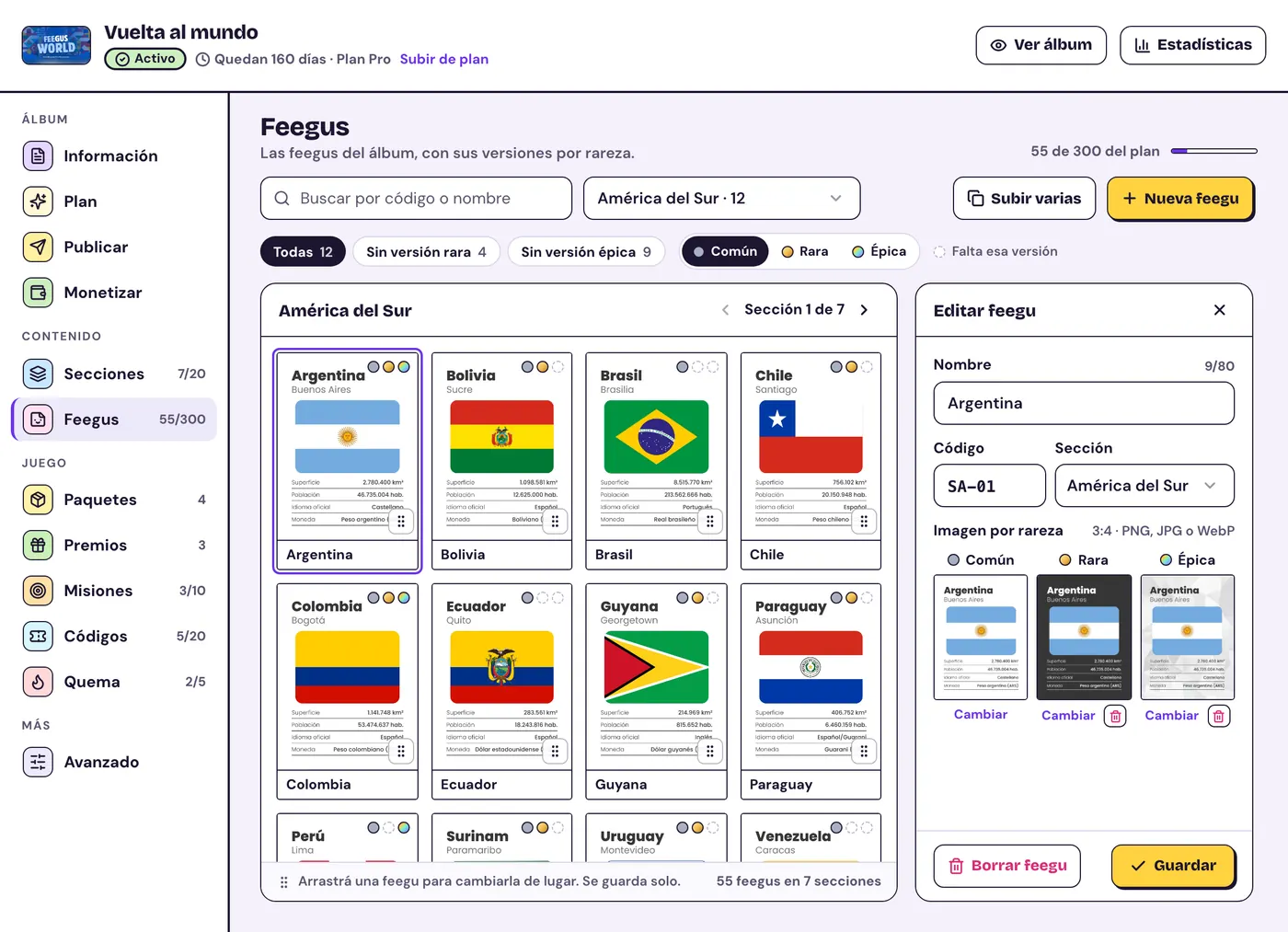
- At the top: the cover, the name, the status (Draft, Active, Closed), the days left and the plan, with View album and Stats.
- On the left: the parts of the editor in four groups (Album, Content, Game and More), with how much of each you've used against the plan's limit.
- In the middle: the part you picked.
- Saving: many things save on their own (each part says so); where there's a Save button, tap it.
- On a phone: you see the list of parts and open each one.
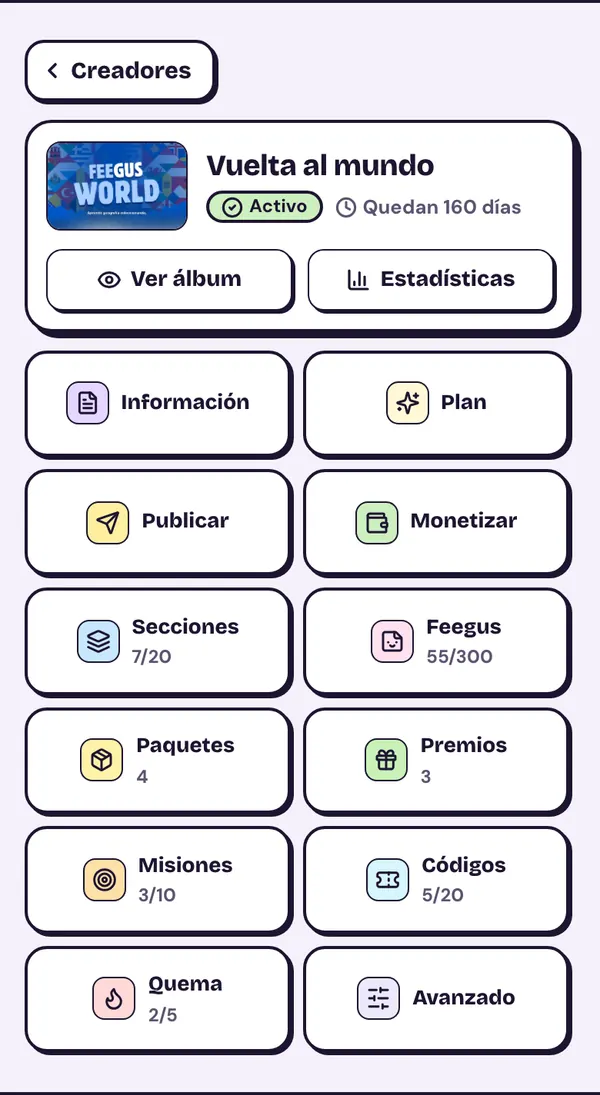
Publish is explained in Getting started; Monetize, in Making money.
Details, Plan and Advanced
- Details: the name, the description and the cover, which save on their own. The address shows here but can't be changed.
- Dates: the closing date can be moved earlier, but not past what the plan allows. The access password is here too.
- Credits: other accounts shown as co-authors on the album's page. They can't edit it.
- Plan: what the album's plan includes and how much of each thing you've used. You upgrade from here.
- Advanced: archive the album. It stops showing and nobody can play it; you can bring it back from the editor with “Restore”.
Want it to end sooner? Don't archive it: move the closing date earlier. That way players keep seeing it as a keepsake for 30 more days.
Sections
The parts of the album, like the chapters of a paper album. Each feegu goes in a section.
- Each section has a name (up to 60 characters) and an optional description (up to 300), shown in the album under the name.
- Drag to change the order: it saves on its own.
- If you delete a section, its feegus aren't deleted: they move to “No section”, at the end of the album. Players' collections don't change.
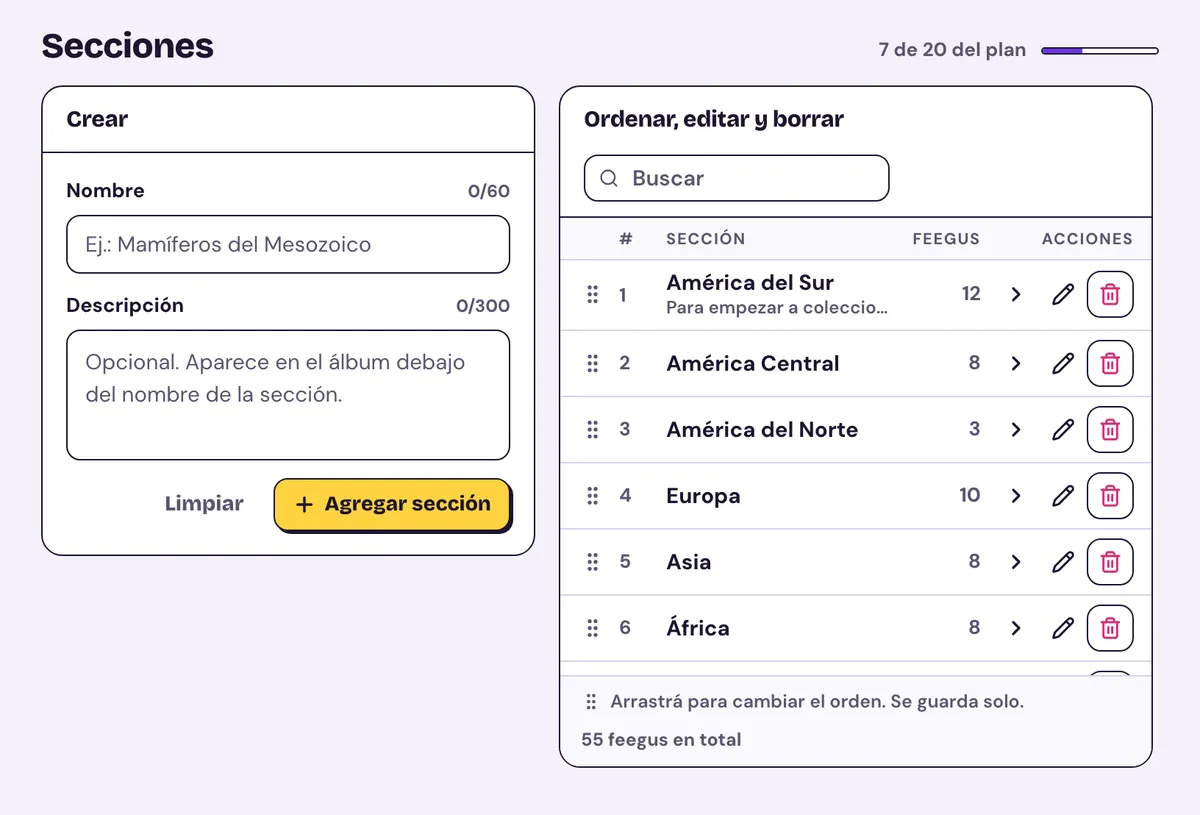
Ideas: by region, era, team or character. A short first section that's easy to fill hooks people who are just starting.
Feegus
The album's stickers, section by section, as they look in the album.
- New feegu: name (up to 80 characters), code (for example AR-01), section and the images. The common one is required; rare and epic are optional.
- Upload many: up to 50 images at a time. Each file name becomes the feegu's name and the codes follow the section's. You review the list before uploading: only the ready ones go up.
- Rare or epic versions (also in Upload many): they're matched to their feegu by the code in the file name, or you pick it by hand.
- Search by code or name, filter the ones missing a rare or epic version and drag to change the order.
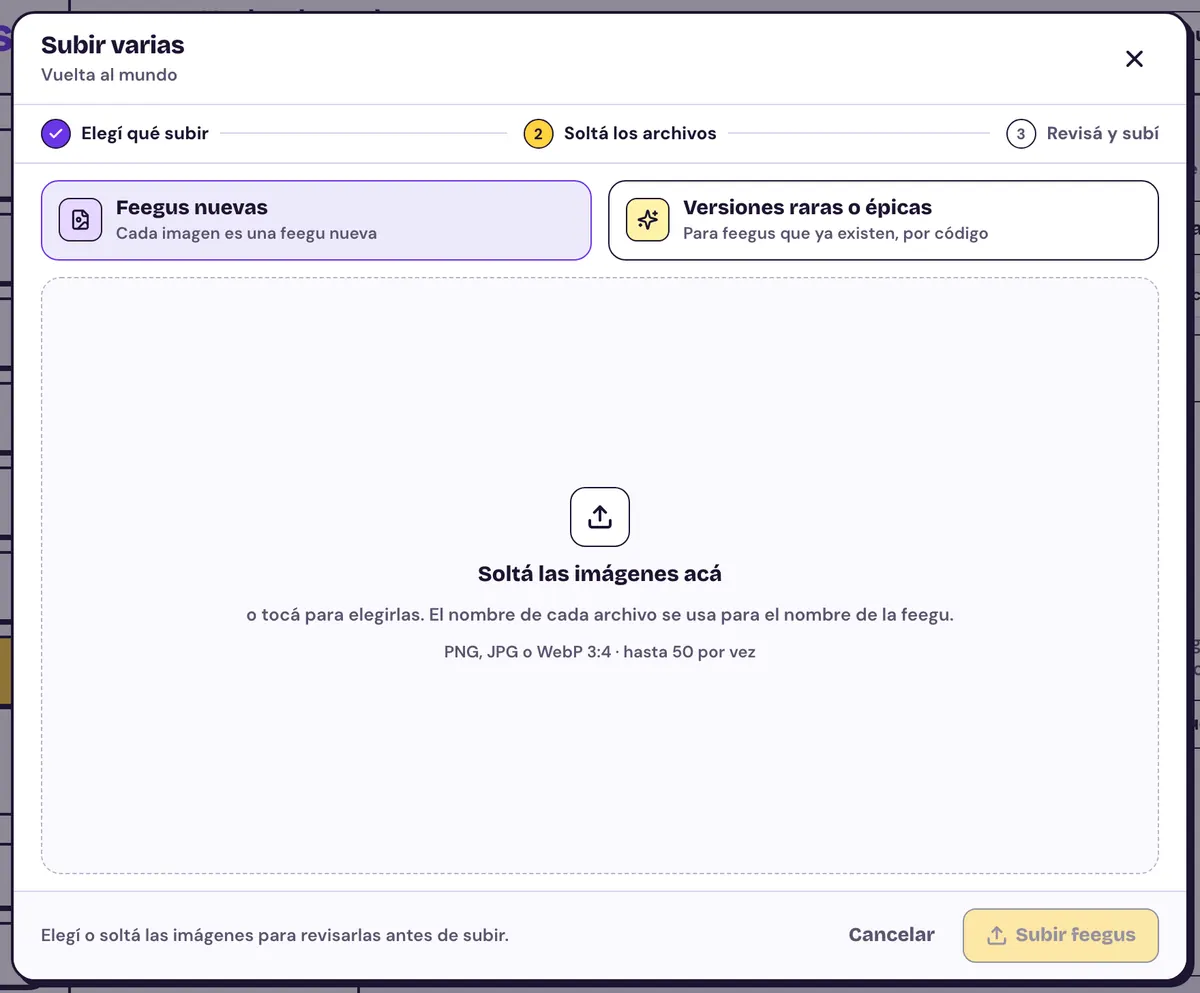
Deleting a feegu also removes it from players' collections. Think twice in an album people are already playing.
Packs
One card per pack type: daily, premium, missions and custom.
- Feegus per pack and odds (with “Edit”), which must add up to 100%.
- Its own cover (portrait 3:4) or the automatic one.
- Price and discount on the premium and custom packs, once you're approved to get paid.
- The custom pack has its own name and can be deleted.
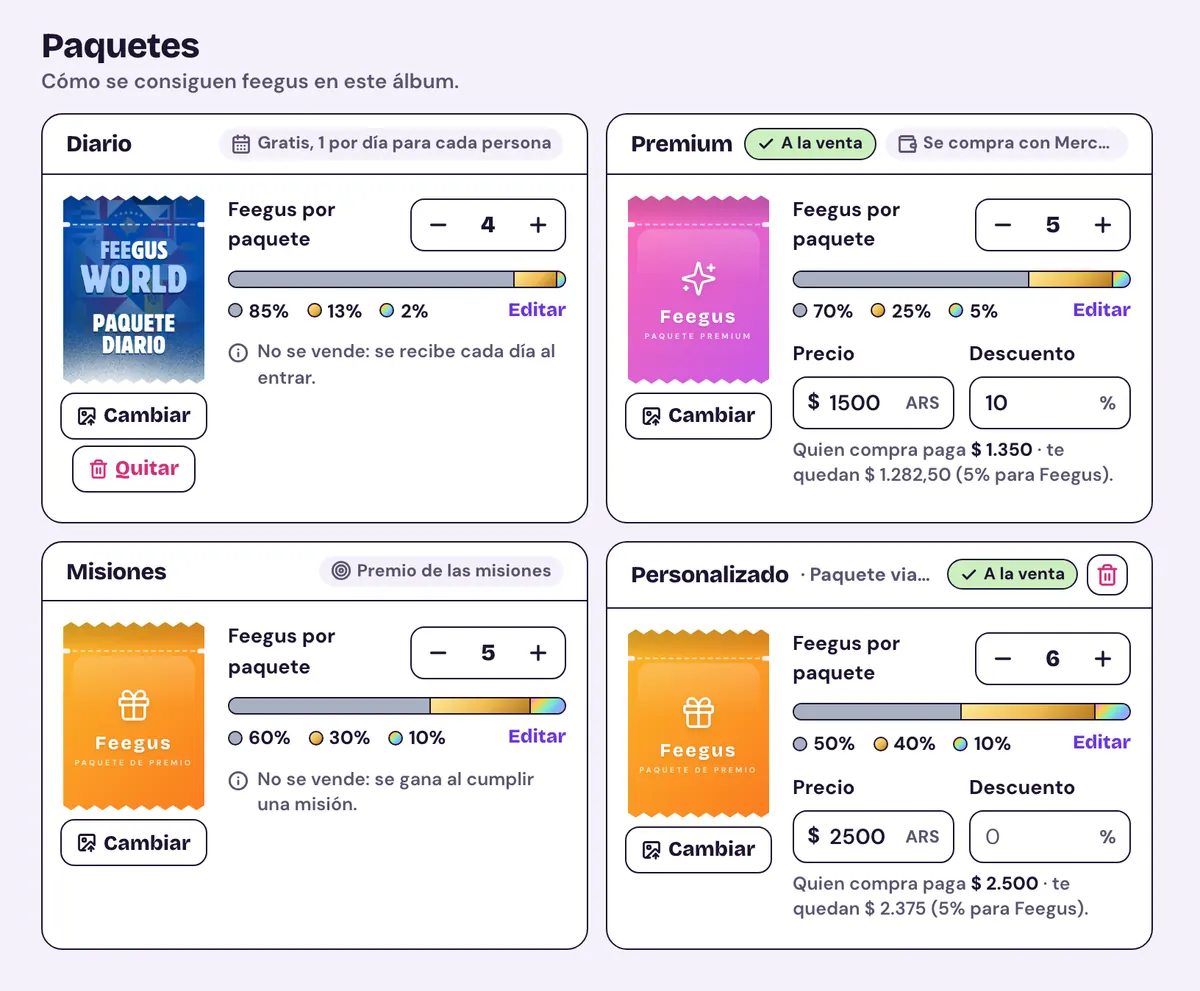
What to set on each one: Packs and rarities.
Prizes
What players win by filling the album, in three levels:
- Album full: every feegu pasted, of any rarity.
- Album in rares: every slot with a rare or an epic.
- Album in epics: every slot with an epic.
For each level, you switch on what it gives:
- Frame for the profile picture: a square image with a transparent center.
- Title for the profile (up to 60 characters).
- PDF to download, saved in My downloads.
- Special prize: a text about something you give yourself (up to 500 characters).
- Message when they win (up to 500 characters).
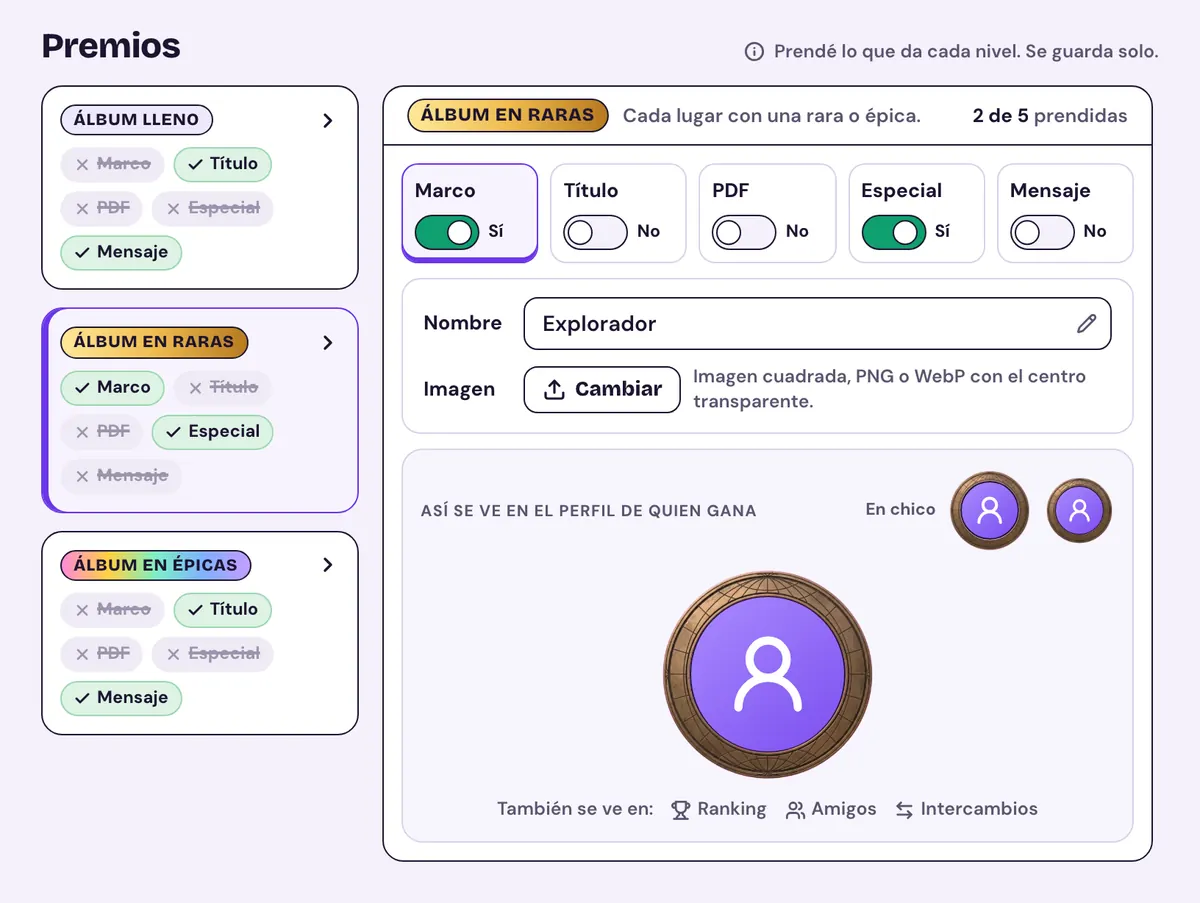
Frames, titles and the PDF depend on the plan. If you switch something off, whoever already won it keeps it.
Prize ideas:
- Album full: a simple title, for everyone who makes it to the end.
- In rares: a frame that stands out on the profile.
- In epics: something unique, like the printable album as a PDF.
- Special prize: a ticket, a discount in your shop or a shout-out on your social media. Explain right there how to claim it (for example, “send a screenshot to our account”).
Missions
Challenges that give mission packs when completed.
- What to paste: specific feegus (with a minimum rarity: any, rare or better, or epic) or whole sections.
- Prize: 1 to 5 mission packs.
- End: an optional date. The switch turns it on or off.
- The plan limits how many missions are active at once; ended or switched-off ones don't count.
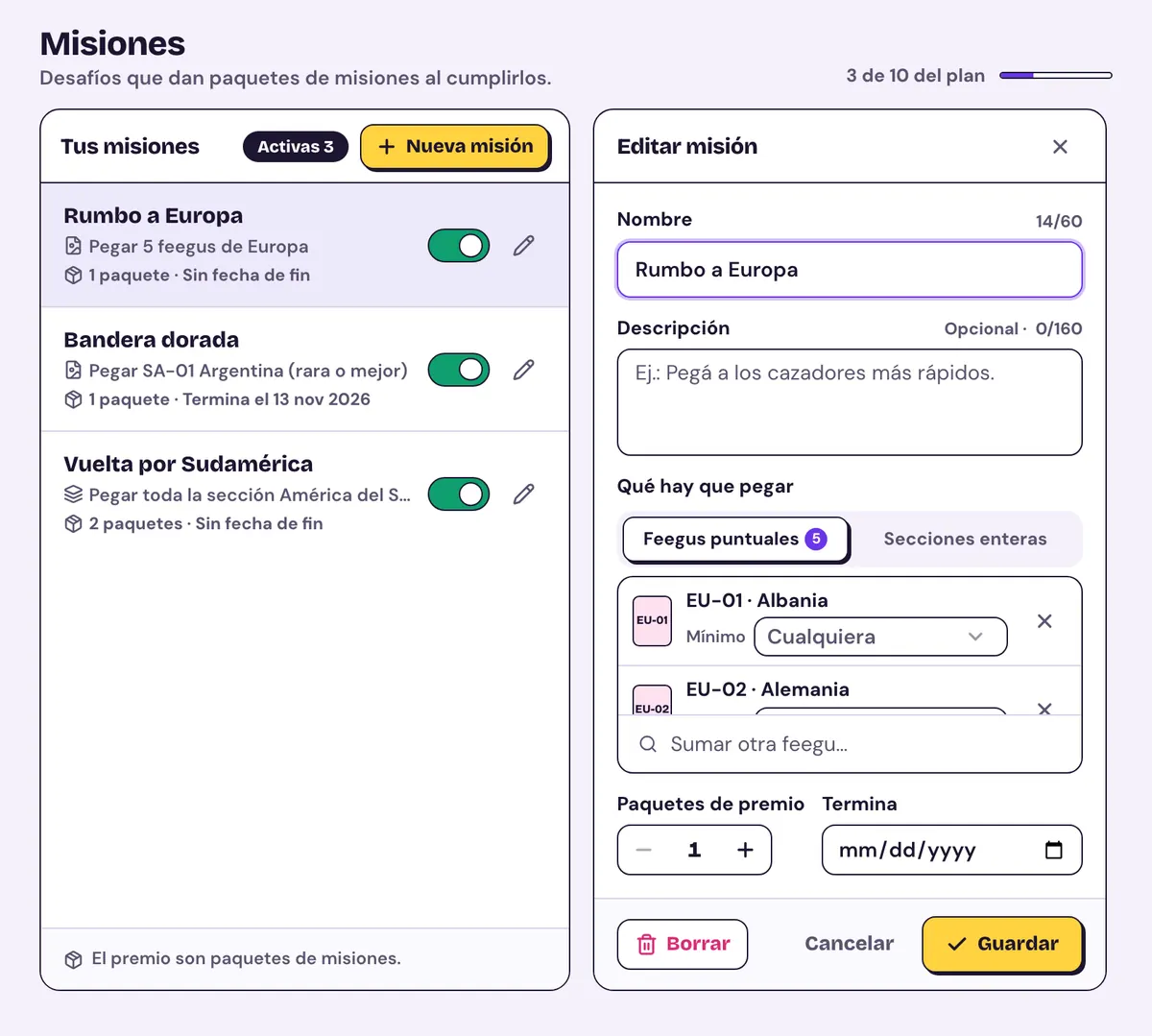
Players see the missions in the album and, when they complete one, redeem the packs.
Mission ideas:
- Complete a whole section: “Around South America”.
- Get a specific feegu in rare or better: “Golden flag”.
- One mission a week with an end date, so people keep coming back.
- An easy welcome mission with the album's first feegus.
Codes
To give packs away. How they work is in Codes to give packs away.
- New code: the text (3 to 30 letters or numbers, no spaces), the pack type, how many it gives, the uses and the expiry date.
- Generate in bulk: many single-use codes at once, downloaded as a .csv.
- The list shows the uses left and each code's status: Active, Used up or Expired.
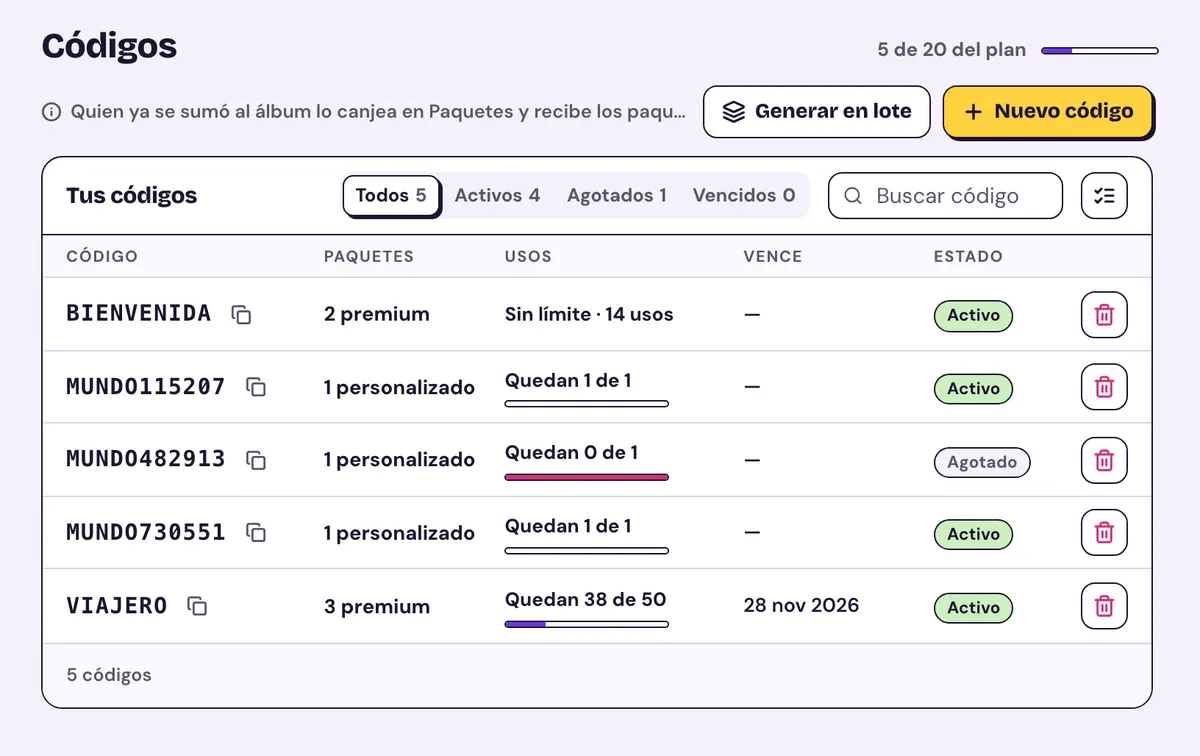
Code ideas:
- A welcome code with unlimited uses to share on your social media.
- Single-use codes for giveaways.
- A batch for a partner brand to hand out to its people.
Burn
Rules to swap duplicates for a random feegu of another rarity; for example, 5 common duplicates for 1 rare.
- Choose which rarity is burned, how many (2 to 50) and which rarity is received.
- Only duplicates are burned: the pasted one stays.
- Players use the rules from the album, under “Duplicates & Burn”.
- How many rules you can have depends on the plan.
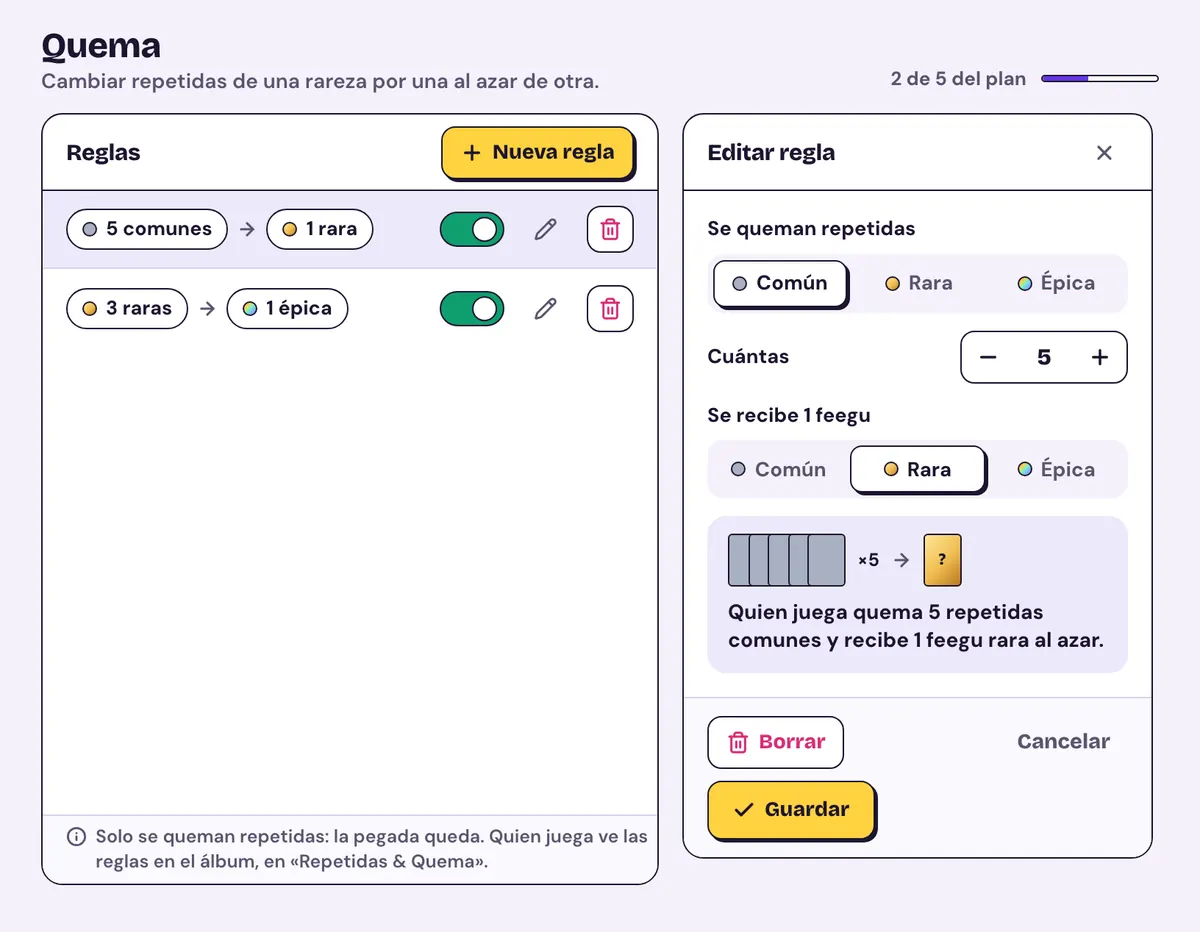
An idea: commons for a rare and rares for an epic. That way duplicates are always useful and filling the album in rares or epics becomes possible.
Stats
From Stats, at the top of the editor, you see how the album is doing:
- How many people joined, how many played in the last 30 days, how many filled it and the average progress.
- Earnings by period (today, this week, this month, last month or since it opened), with the Feegus fee and what you keep.
- The most wanted feegus (the ones fewest people have) and the most pasted ones.
- Packs opened by type, trades done, missions completed, codes redeemed and prizes won.
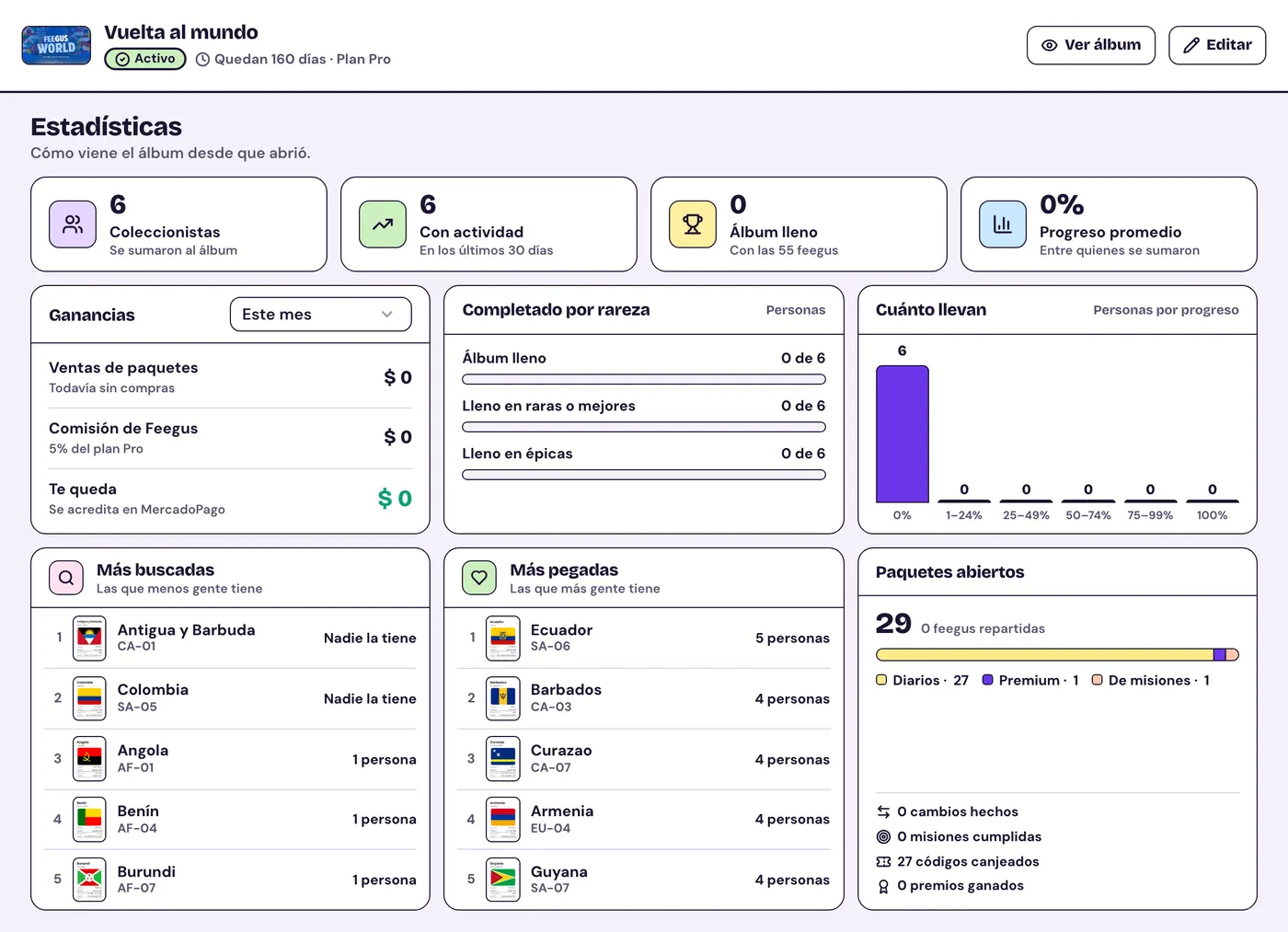
The most wanted ones make a good excuse for a mission or a code.
Making money
Selling packs is optional: the album is free to play either way. Here is what you need to get paid and how the money reaches you.
What you need to get paid
You get paid for the premium and custom packs you sell. To start:
- Verify your identity in Settings › Payouts.
- Connect your MercadoPago account, also in Settings › Payouts. That's where the money from sales goes.
- Ask for approval from Monetize, in the editor: you accept a few declarations about the content and the Feegus team reviews the album.
- Set a price. When you're approved you get a notification, and you can price the packs from Packs, in the editor.
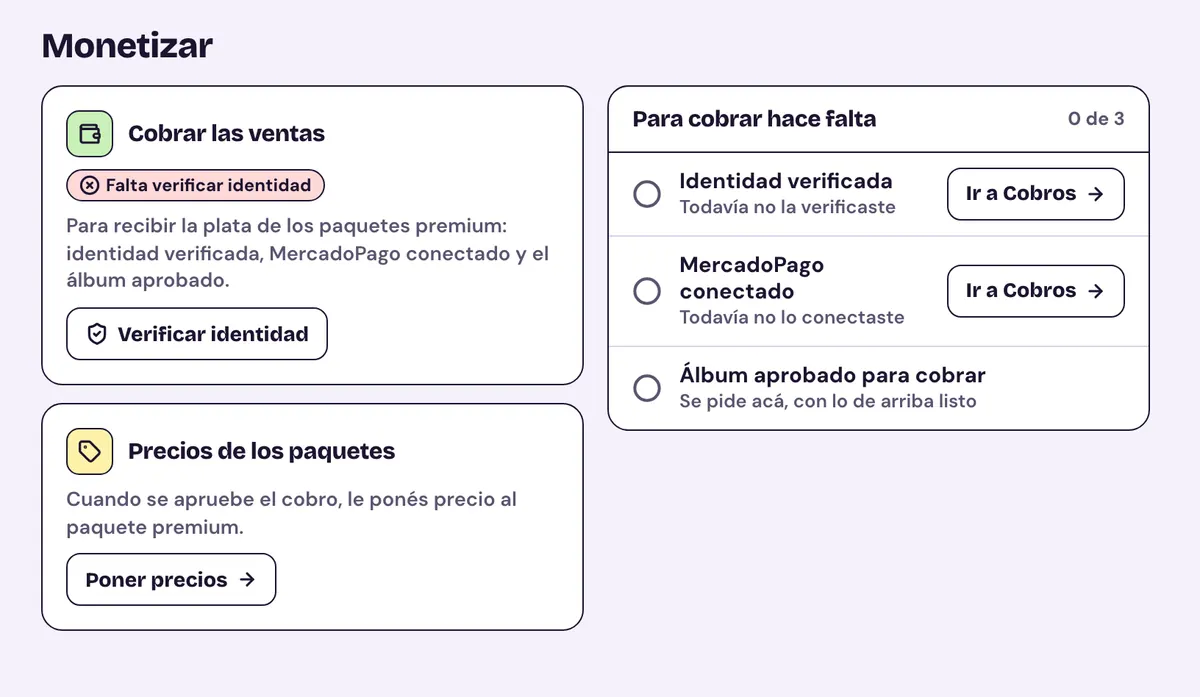
The album doesn't need to be public to sell.
How the money reaches you
- Buyers pay with MercadoPago from Packs › Kiosk.
- The payment is collected in your MercadoPago account, and MercadoPago sets the Feegus fee aside right away.
- The fee is a percentage of each sale and depends on the plan (see Plans).
- When the money becomes available to withdraw is up to MercadoPago, depending on your account.
- In Stats › Earnings you see what was sold, the fee and what you keep, by period.
Example: a $1,000 pack with a 10% discount sells for $900. With a 5% fee, Feegus keeps $45 and you keep $855.
What buyers see
- The Kiosk shows the packs for sale from the albums they already joined, with the price and the discount.
- They can buy 1 to 50 packs at a time, for themselves or as a gift for a friend already in the album.
- Bought packs wait in Packs until they open them.
- Purchases happen in the browser, on a computer or a phone.
- Packs are sold while the album is open: once it closes, no more packs are sold.
Ideas to sell more:
- A launch discount for the first days.
- Better odds in the premium pack than in the daily one, so buying is worth it.
- A custom pack with something different, for example better chances of epic.
Plans
The plan sets the album's size, its extras and how long it stays open. You pay once per album: it's not a subscription.
What each plan includes
Every plan includes the daily, premium and missions packs; the limits and extras change:
| Feature | Inicial | Intermedio | Pro |
|---|---|---|---|
| Price (ARS) | 25,000 | 50,000 | 100,000 |
| Album duration | 3 months | 6 months | 1 year |
| Feegus fee | 10% | 7% | 5% |
| Stickers | 50 | 150 | 300 |
| Sections | 5 | 10 | 20 |
| Active missions | 3 | 5 | 10 |
| Burn rules | 2 | 3 | 5 |
| CodesRedeemable codes | 3 | 5 | 20 |
| CustomCustom packs | No | No | Yes |
| Winner titles | No | Yes | Yes |
| Prize frames | No | No | Yes |
| PDF prize | Yes | Yes | Yes |
Active missions: the ones switched on and not ended at the same time. How many images you'll create with each plan: How many images per plan?
Prices in Argentine pesos. More details in For creators.
How you pay
- You pay once, when you create the album, with MercadoPago. It's not a subscription; you only pay the difference if you upgrade.
- If you have creation credits, creating an album uses 1 credit and you pay nothing at that moment. Credits don't expire.
- On every plan, playing is free for whoever joins; buying packs is optional.
Upgrading
- From the editor (Plan › Upgrade plan) you move to a bigger plan by paying only the difference.
- When you upgrade you can extend the closing date, up to what the new plan allows.
- It's possible while the album is open, and only for whoever created it.
When the album ends
You pick the closing date when you create the album, within what the plan allows. Then:
- Open. It's played as usual.
- Closing soon. In the last 7 days, the album shows how many days are left.
- Closed. From the closing date and for 30 days it stays as a keepsake: the collection, the ranking and the prizes can be seen, but no more packs are opened and there's no burning, trading or missions. The editor becomes read-only.
- Archived. After those 30 days, players no longer see it. Anyone who completed it keeps showing it on their profile forever, the titles and frames they won stay there and PDFs stay in My downloads.
A closed album doesn't open again. If you want more time, upgrade before it closes and extend the date.
Any questions? Write to us from Contact.